Find Answers Faster in the New Help Center
Search every help article as you type, browse by topic, and move from one article to the next without going back.
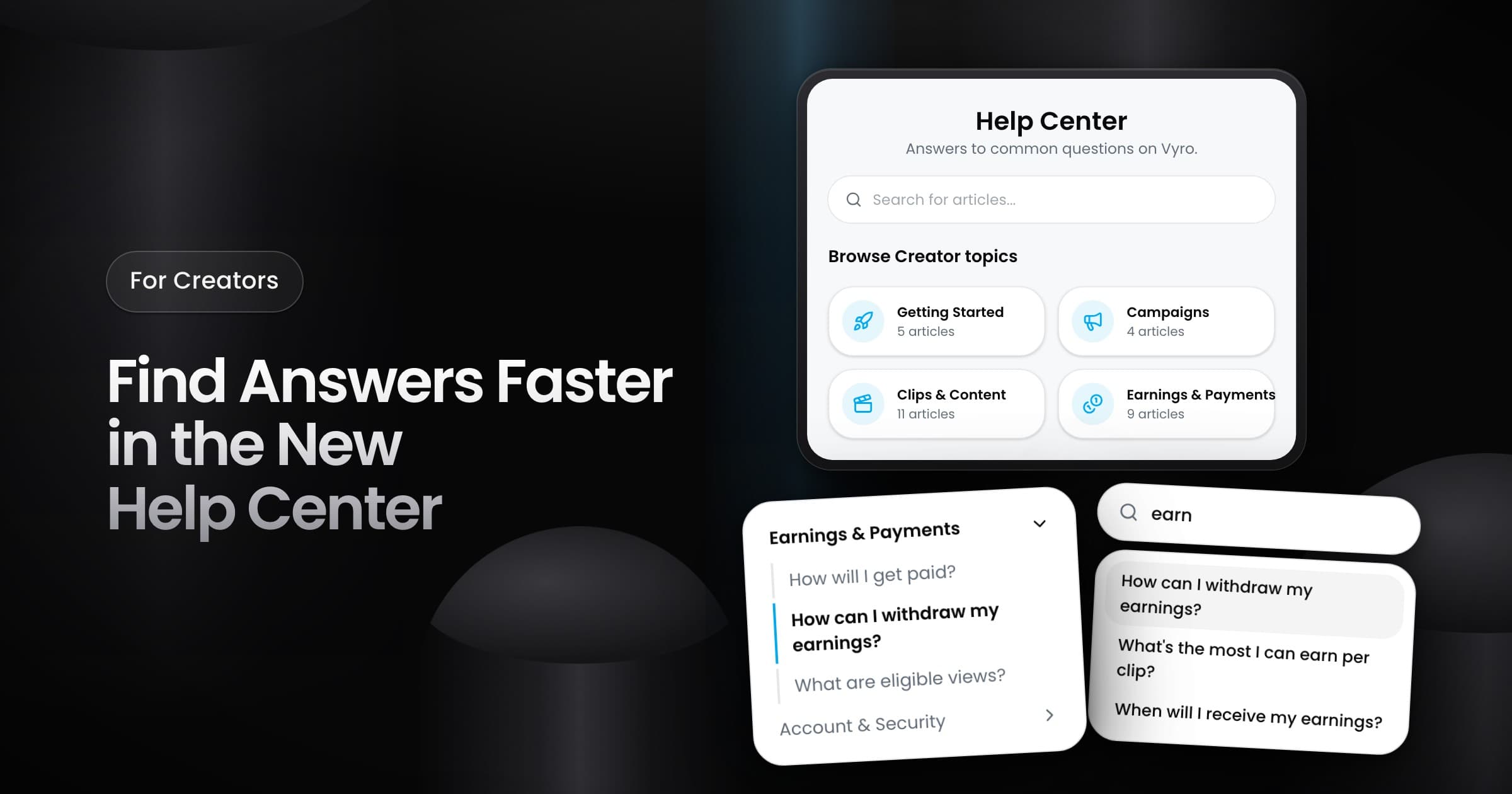
Creators can now find answers faster in the new help center at vyro.com/help.
Find an article
- Search: type in the search box on the home page. The matching articles and topics show while you type.
- Topics: browse five topics, from Getting Started to Account & Security. Each topic card shows its number of articles.
- Topic pages: each topic lists its articles with a short summary. Use the buttons at the top to go to a different topic.
Read an article
- Topic menu: the menu on the left shows all the topics and keeps the current topic open. On a phone, tap "Browse topics" to open it.
- On this page: when an article has sections, a list of the sections lets you go directly to one. On a smaller screen, open "In this article".
- Previous and next: the links at the end of the article take you to the previous or the next article.
- Article details: the line under the title shows the date of the last update and the time to read the article.
Contact the team
When the help center does not answer your question, click "Message us" at the end of the home page. It opens the Support page in the Vyro app, where you can send a message to our support team.